Get Bored of Paper/HTML based FORMs ? Try out Interactive AdobeForms which can be filled Offline using Webdynpro for ABAP

Get Bored of Paper/HTML based FORMs ? Try out Interactive AdobeForms which can be filled Offline using Webdynpro for ABAP

This Article Contains a Demo application which is based on Interactive adobe froms which covers upload the Adobe forms after filling it Offline.

Author : Raj

Author's Website | Articles from Raj

Raj is an Application Developer focusing on Custom Development - particularly in the areas of ABAP ,WD4A , JAVA , APO , Enterprise services and PI Developer/consultant . He is also certified in ABAP and PI. Facebook

It was a Normal day in office when a sweet voice broke the silence
“Hi  Raj, How r u???”
She was my Functional Katherine :-) .
(Any way let me just skip our Private chat and let’s carry on with the work she gave)
She wanted to show a Demo of Adobe forms to the Client. For which she wants me to Develop a sample application
Her  Requirement was ::
Develop a Webdynpro application from where user can download the PDF FORM  in his/her local system.
After filling the FORM locally (or offline)  the user can upload the FORM back to the SAP Application Server.
This application should also have the option to fill the FORM ONLINE.

So let us quickly list out the objects needed for this Demo application.
1.)We need a Adobe form embedded in a Web Dynpro component.
2.)A database table which would store all the Form data.
Lets begin with creating the database table As mentioned above.A database table is needed where you will store the FORM data.
For that create a database table from Transaction code Se11 as shown below:
Table contains three fields (Other than MANDT )name :
DEPTNO, DNAME and LOC.To start with the Tutorial:
Step 1:
Create a Webdynpro  ABAP component ZTEST_RAJ_OFFLINE  using se80.
(You can give any name )
Step 2: ( Insert  Interactiveform  element in the layout.)
To create a PDF interactive form:
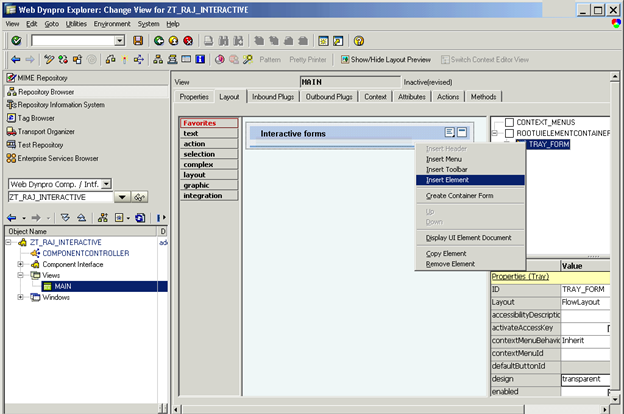
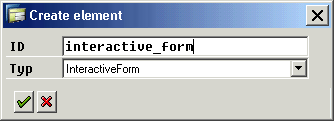
Create a Interactive form named INT_DEPT_FORM  by going to the Main view of your Webdynpro component
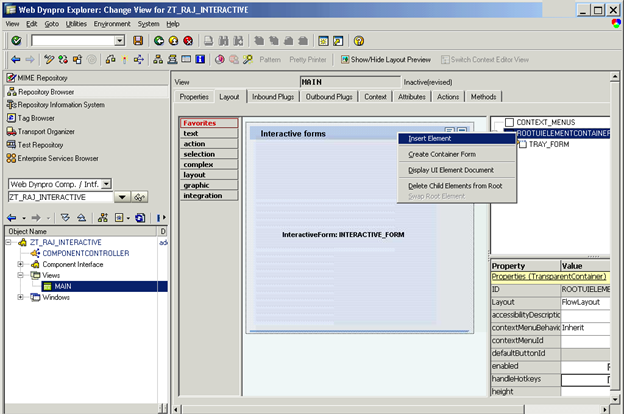
and right click on the ROOTUIELEMENTCONTAINER.
Step 3:
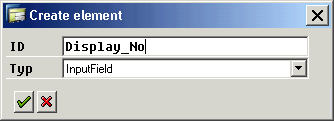
To also allow Katherine  to upload the PDF FORM from her local System we will create few more UI Elements like:
FILE_UP_LOAD  which is of type  FileUpload.

Upload (Button) which is of type Button.

Step 4 :

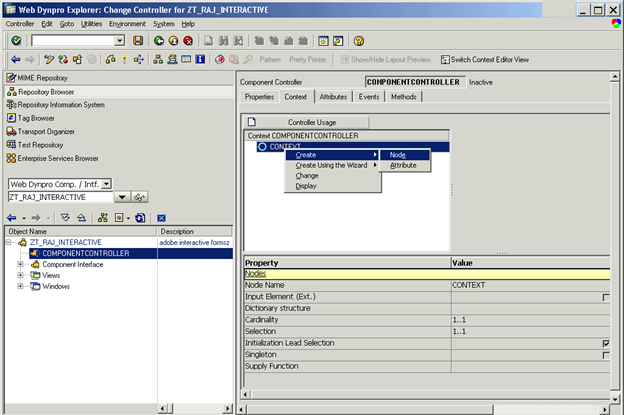
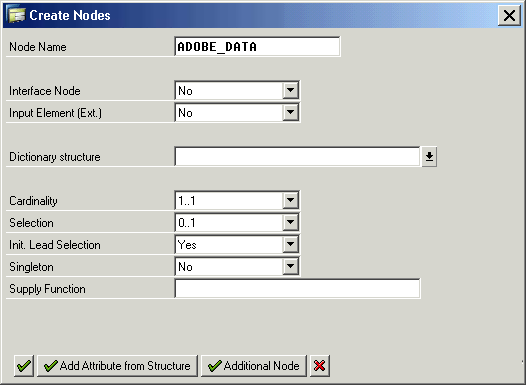
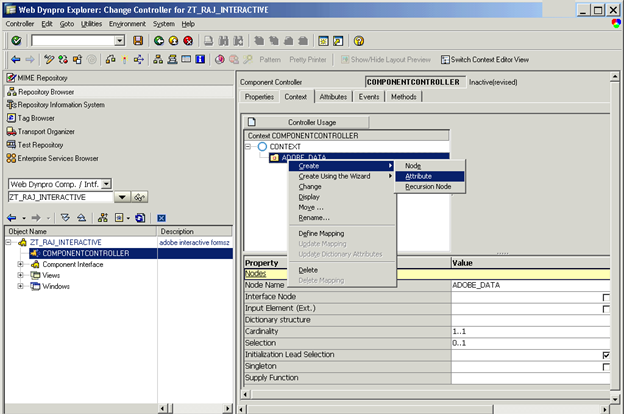
Now go to Context tab of your Main view to create the required Nodes and elements.
When Katherine upload the form from her local Computer, a data node of type XTRING is needed to hold the Form details
We will declare a Element which is of type XSTRING which would store the form
.

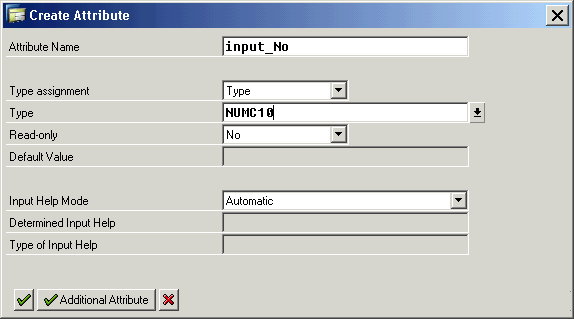
To store the FORM data like Dept No, Dept name and Location we also need  respective attributes  to be created.

.
.

Finally your context will look like :

Step 5:
Now it’s time to map the data with layout.
Go back to your layout tab, Double click on the FILE_UP_LOAD Element.
Go to Property data and Bind it with the PDF_SOURCE of your context.

Step 6:
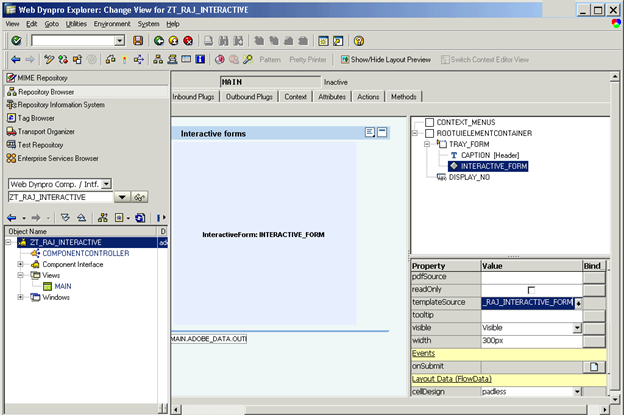
Now Double click on the element INT_DEPT_FORM.and enter the name ZINT_DEPTFORM in the template source .Hit Enter.

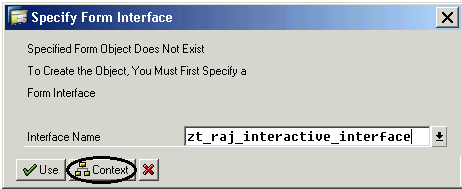
It will prompt you to specify the interface name. Give any name say : ZINT_DEPTFORM_INTF

and click on the CONTEXT Button.
(it is good practice to use the context of your view while creating the FORM
because you need not to work extra on the interface part.)

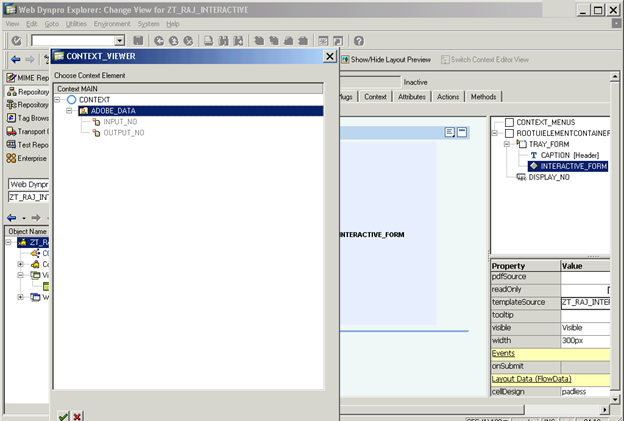
Select your Dept_data node and click enter.

Step 7:
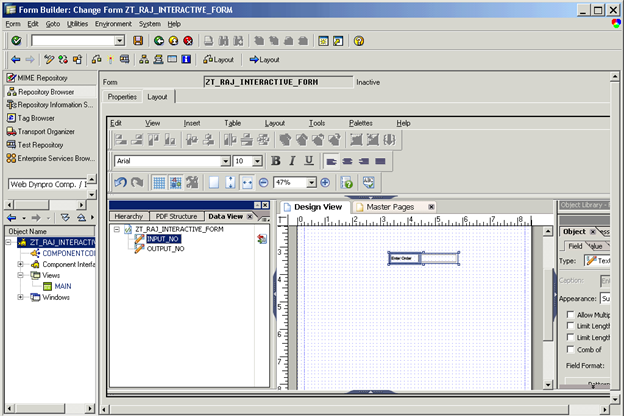
It will take you to Adobe Form Designer.
Select the data DATA View from the left panel where you can see yours Dept_data Node.
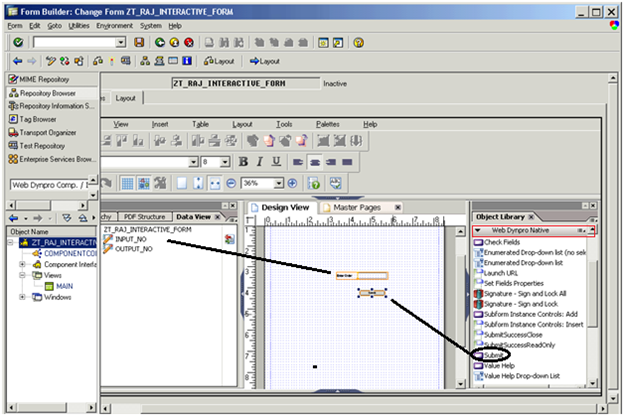
Drag it to the Right side part on design view. Work on the Alignment part.
Also put one Submit Button from the Object Library (Palettes Object Library).From Webdynpro Native.
Finally your layout of adobe form will look like:

Step 8 :

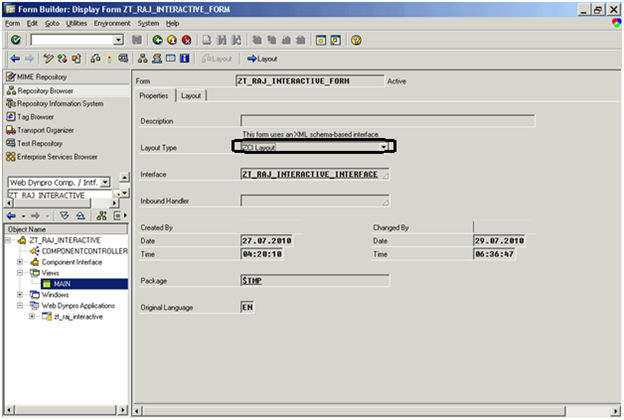
Go to the Property tab of the Form and select the layout type as
ZCI Layout (called as Zero client installation layout).
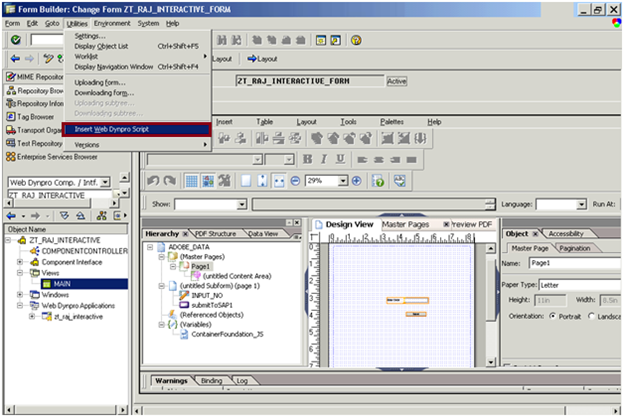
Again come back to the Layout tab and follow the menu path:
Utilities -> Insert the Webdynpro Script .
Save and activate the FORM+interface.

Step 9 : Go back to your Webdynpro Component:
Two things are yet to be completed for  the required development:

  1. Code to read and save the data from the FORM when user submit the form ONLINE.
  2. Code to read the PDF file when user upload it and save the data into database table ZTEST_DEPT.
Starting with the First part.
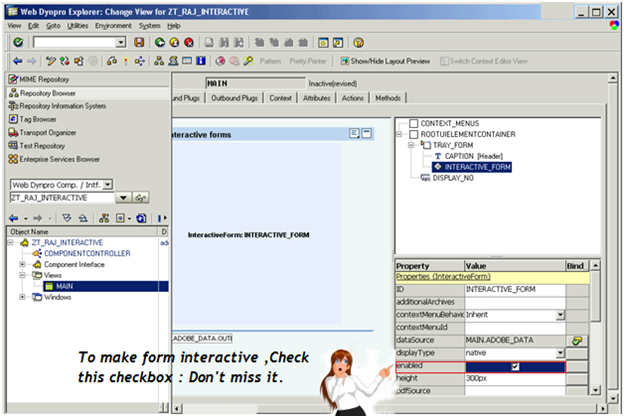
Go to the Properties section by double clicking on the Element INT_DEPT_FORM and set the
Width as 100%
Check the Check box Active.

Step:10.
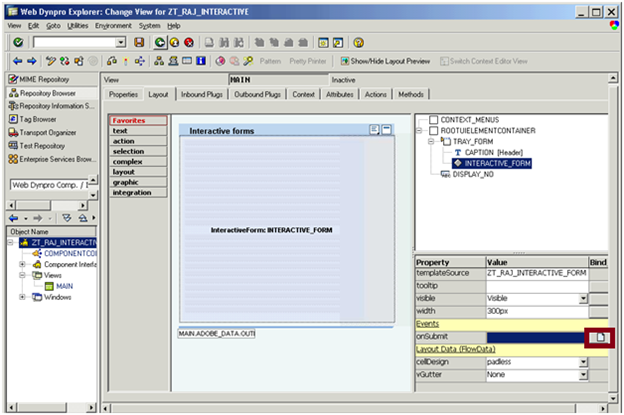
When a User submit the FORM by clicking the SUBMIT Button .. It will trigger the Event.

To trigger a method for this Event ,click on the Create Button for the OnSubmit Property of the INT_DEPT_FORM Element.

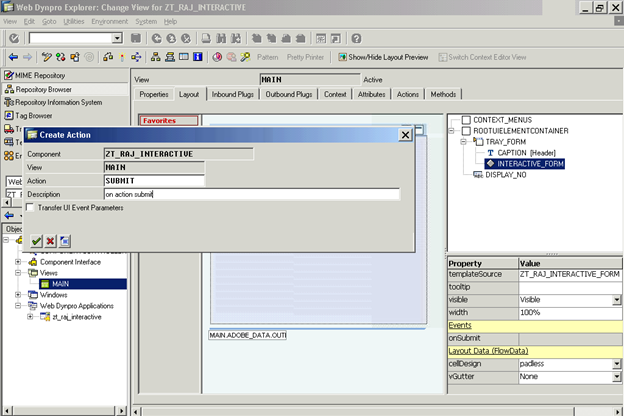
This will Internally Generate a method called ONACTIONSUBMIT.
(The method’s naming convention which gets created is  ONACTION<Action name>.)You can see this

method in the method tab of your Main View.
Put the below code inside the Method.
Explanation: when user fill the data inside the Form it will automatically seats in the Context of the Main view as it is mapped with the
Adobe form Interface. So your job is to read that data and simply insert it into database.
data : lv_node type ref to if_wd_context_node.
data : wa_dept type ztest_dept.lv_node = wd_context->get_child_node( NAME = ‘DEPT_DATA’ ).
lv_node->get_attribute( EXPORTING name = ‘DEPTNO’ IMPORTING value = wa_dept-deptno ).
lv_node->get_attribute( exporting name = ‘DNAME’ IMPORTING value = wa_dept-dname  ).
lv_node->get_attribute( exporting name = ‘LOC’ IMPORTING value = wa_dept-loc ).
wa_dept-mandt = sy-mandt.
insert ztest_dept from wa_dept.

Step 11:
When user upload the offline Pdf  form , we need  code which would  read the data from the file and save it into database table ZTEST_DEPT.
Double click on the Upload Button element. Go to its Properties and click on the Create Icon to create an Action.

Similar to Submit this will also Create one method named ONACTIONUPLOAD.Put the below code inside this Method:
Explanation: This code reads the PDF file which is Uploaded by the user and extract the Dept name , Dept No and location from it and save it into the database table Ztest_dept.

TYPE-POOLS: ixml.
DATA: w_pdf_source TYPE xstring,
w_dob TYPE char10.
* Get a reference to the form Processing class
DATA lo_el_context TYPE REF TO if_wd_context_element.
DATA ls_context TYPE wd_this->element_context.
DATA lv_pdf_source LIKE ls_context-pdf_source.
* get element via lead selection
lo_el_context = wd_context->get_element(  ).
* get single attribute

lo_el_context->get_attribute(
EXPORTING
name = `PDF_SOURCE`
IMPORTING
value = lv_pdf_source ).

DATA: l_fp TYPE REF TO if_fp.

l_fp = cl_fp=>get_reference( ).

* Get reference to the Pdf Object Class
DATA:l_pdfobj TYPE REF TO if_fp_pdf_object.
TRY.
l_pdfobj = l_fp->create_pdf_object( ).
CATCH cx_fp_runtime_internal.
CATCH cx_fp_runtime_usage.
CATCH cx_fp_runtime_system.

ENDTRY.

* Set your Pdf In the Pdf object created
TRY .
l_pdfobj->set_document( pdfdata = lv_pdf_source ).
* Extract data from pdf object
l_pdfobj->set_extractdata( ).
CATCH cx_fp_runtime_usage.

ENDTRY.

TRY.
* Call Adobe Document Service
l_pdfobj->execute( ).
CATCH cx_fp_runtime_usage.
CATCH cx_fp_runtime_system.
CATCH cx_fp_runtime_internal.

ENDTRY.

* Get the pdf Data to a Xstring Variable
DATA: pdf_form_data TYPE xstring.
l_pdfobj->get_data( IMPORTING formdata = pdf_form_data ).
* Call method to convert xstring to string.
DATA: converter TYPE REF TO cl_abap_conv_in_ce,
formxml TYPE string.
converter = cl_abap_conv_in_ce=>create( input = pdf_form_data ).
converter->read( IMPORTING data = formxml ).

* Get the ixm type group Into Our prorgram DATA: l_ixml TYPE REF TO if_ixml.
l_ixml = cl_ixml=>create( ).

* Get istream Object from Stream Factory

DATA: streamfactory TYPE REF TO if_ixml_stream_factory,
istream TYPE REF TO if_ixml_istream.
streamfactory = l_ixml->create_stream_factory( ).
istream = streamfactory->create_istream_string( formxml ).

* Get xml document Class to process XML DATA: document TYPE REF TO if_ixml_document.

document = l_ixml->create_document( ).

* Get an Interface to Parse the XML

DATA: parser TYPE REF TO if_ixml_parser.
parser = l_ixml->create_parser( stream_factory = streamfactory
istream = istream
document = document ).

* Start parsing theDocument with parsing interface referenced. parser->parse( ).

DATA: node TYPE REF TO if_ixml_node,
fs_dept TYPE ZTEST_DEPT.

node = document->find_from_name(’DEPTNO’).

IF node IS NOT INITIAL.
fs_dept-DEPTNO = node->get_value( ).
ENDIF.

node = document->find_from_name(’DNAME’).

IF node IS NOT INITIAL.
fs_dept-DNAME = node->get_value( ).
ENDIF.

node = document->find_from_name(’LOC’).

IF node IS NOT INITIAL.
fs_dept-LOC = node->get_value( ).
ENDIF.

IF fs_dept IS NOT INITIAL.
fs_dept-mandt = sy-mandt.

INSERT into ztest_dept VALUES fs_dept.
ENDIF.

Step 12:

Save and activate your Webdynpro component.

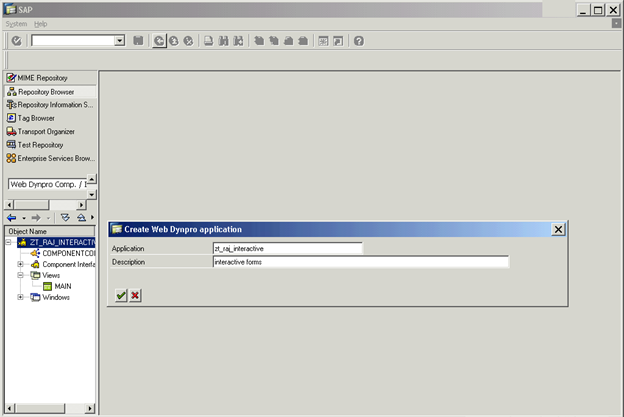
  • Create a Webdynpro application.
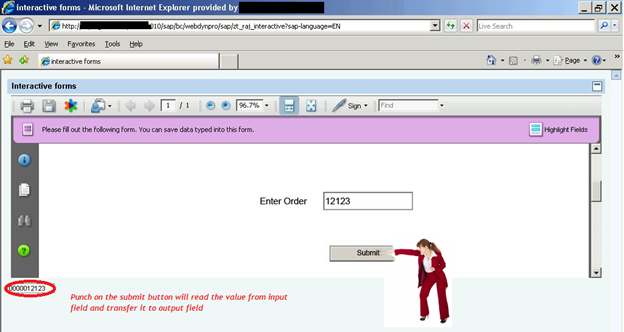
  • Now the form is ready to be tested By beautiful Katherine.
You should see the Below Screen.
(Note : if you can’t see the Adobe forms just “change your advance internet setting  to default” from internet options)

You should see the one entry created in the ZTEST_DEPT table via SE16.

This is what ADOBE FORM has delivered out off the BOX functionality. You can’t achieve this using any HTML Forms.

Just like a normal word or excel file it will store the data which you have filled.
Execute your application again and upload this form.
Once you click on the UPLOAD Button you can see the corresponding entry updated in the ZTEST_DEPT table.
Note : If something doesn’t work out ,you can always put a  debugging point inside your onactionsubmit / onactionupload method.


Like this post? Share it!

  • Tweet
  • Facebook
  • Diggit
  • Delicious
  • Diggit
  • Diggit
  • Diggit
  • Diggit
  • Diggit

ADVERTISE HERE


User Comments


  1. Arun.P
    January 5, 2011

    Hi Raj

    I tried with two buttons in AIF but still having problems, It will be good to have a sample application with more than one buttons in AIF and based upon that the action should take place.
    Regards
    Arun.P

    Reply


    • Raj
      January 5, 2011

      Hi Arun,
      We will surely try to provide one article based on this.
      i have conveyed this to our ignite team.

      Thanks.
      SAP Ignite

      Reply


  2. Betcy
    January 10, 2011

    Hi Raj  ,  

    Nice article  … 
    Can you please post some more good examples on Formcalc based scipting  .

    Best Regards  , 
    Betcy Yohannan  

    Reply


  3. Caiden
    January 12, 2012

    This site is like a clasrsoom, except I don’t hate it. lol

    Reply

Leave a Reply

:wink: :-| :-x :twisted: :) 8-O :( :roll: :-P :oops: :-o :mrgreen: :lol: :idea: :-D :evil: :cry: 8) :arrow: :-? :?: :!:
  Twitter Followers Email Updates